
Each store will receive a Samsung 1 or 2TB external SSD. This needs to be connected to the Dragonfruit base station (Mac mini) and kept securely in place.
Installation takes about 2 minutes.
Step 1: Identify your Mac Mini model
Stores may have different Mac mini versions. Follow the instructions that match what you see.
Step 2: Find the right port on the Mac Mini
a) For Mac Mini M4 models
The Mac Mini M4 has 2 USB-C–compatible ports on the front.
→ Use only the front USB-C ports
→ Do not use the ports on the back
The back ports on this model are Thunderbolt ports and may not work reliably with the SSD.
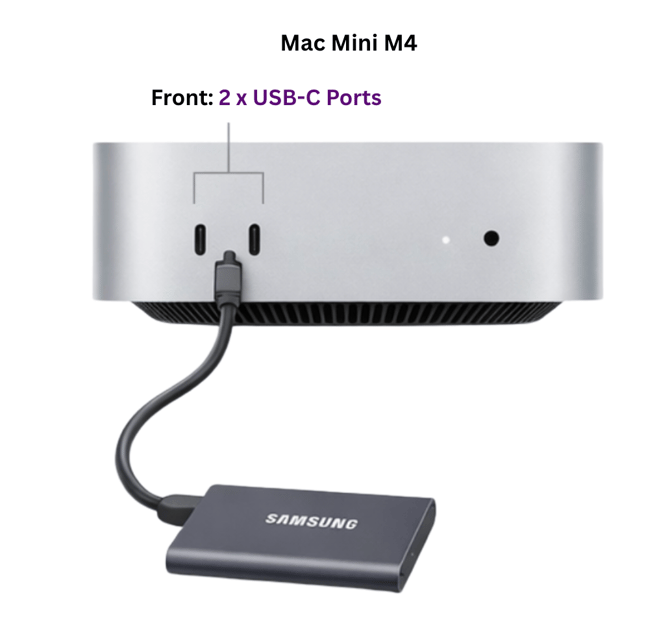
-
Take the Samsung SSD and the cable included with it.
- Plug the cable into the SSD.
- Plug the other end of the cable into any USB-C port on the Mac mini.
No additional setup is required. Once connected, the SSD is installed.
b) For Mac Mini M1/M2 models
If you have the Mac mini (M1 or M2), all ports are on the back of the device. For these models, the SSD should be connected using USB-A.
- Locate the back of the Mac mini.
- Find one of the rectangular USB-A ports.
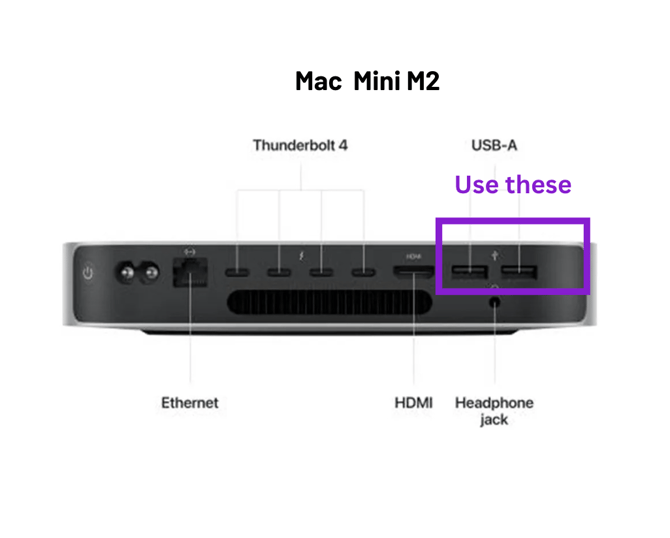
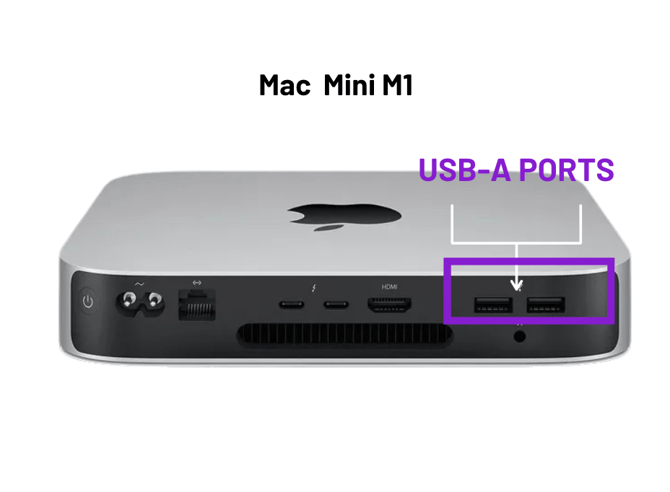
- Connect the SSD using:
- The USB-C cable with the USB-A adapter (included in the kit).
Step 3: Attach the Velcro strips, and position the SSD neatly
You will also receive a package with 3 strips of Velcro, which will help you stick the SSD firmly to the Mac Mini so it doesn't get disconnected.
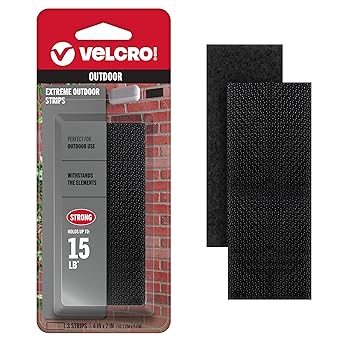
Please follow these steps to attach the Velcro:
- Take one of the Velcro strips, peel off the adhesive, and stick the adhesive side against the SSD
- Take another Velctro strip, peel it off, and stick the adhesive side to the top flat surface of the Mac Mini
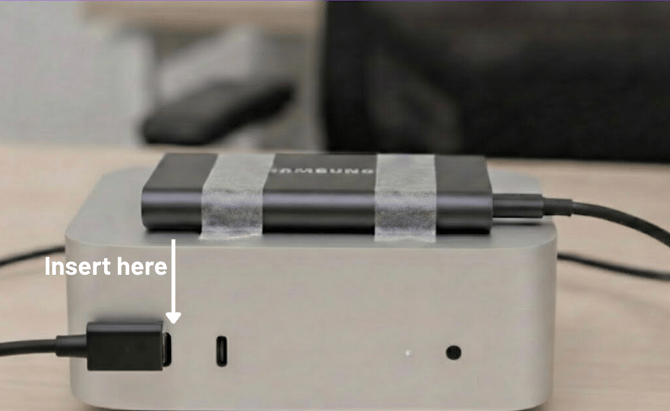
(Disregard the tape in the image above - the Velcro replaces this)
Now that you have attached both the Velcro strips, stick the Velcro of the SSD to the Velcro of the Mac Mini. Press down so they are firmly attached.
Do not allow the SSD to hang from the cable.
Step 4: Secure the cable
To prevent accidental unplugging:
- Make sure the cable is not stretched or dangling
- Make sure the Velcro strips are pressed firmly together.
- Ensure the SSD sits flat and stable
The final setup should look clean and tidy, with no loose cables.
Installation complete
Once the SSD is plugged in and secured, no further action is needed.
Please leave the SSD connected at all times.